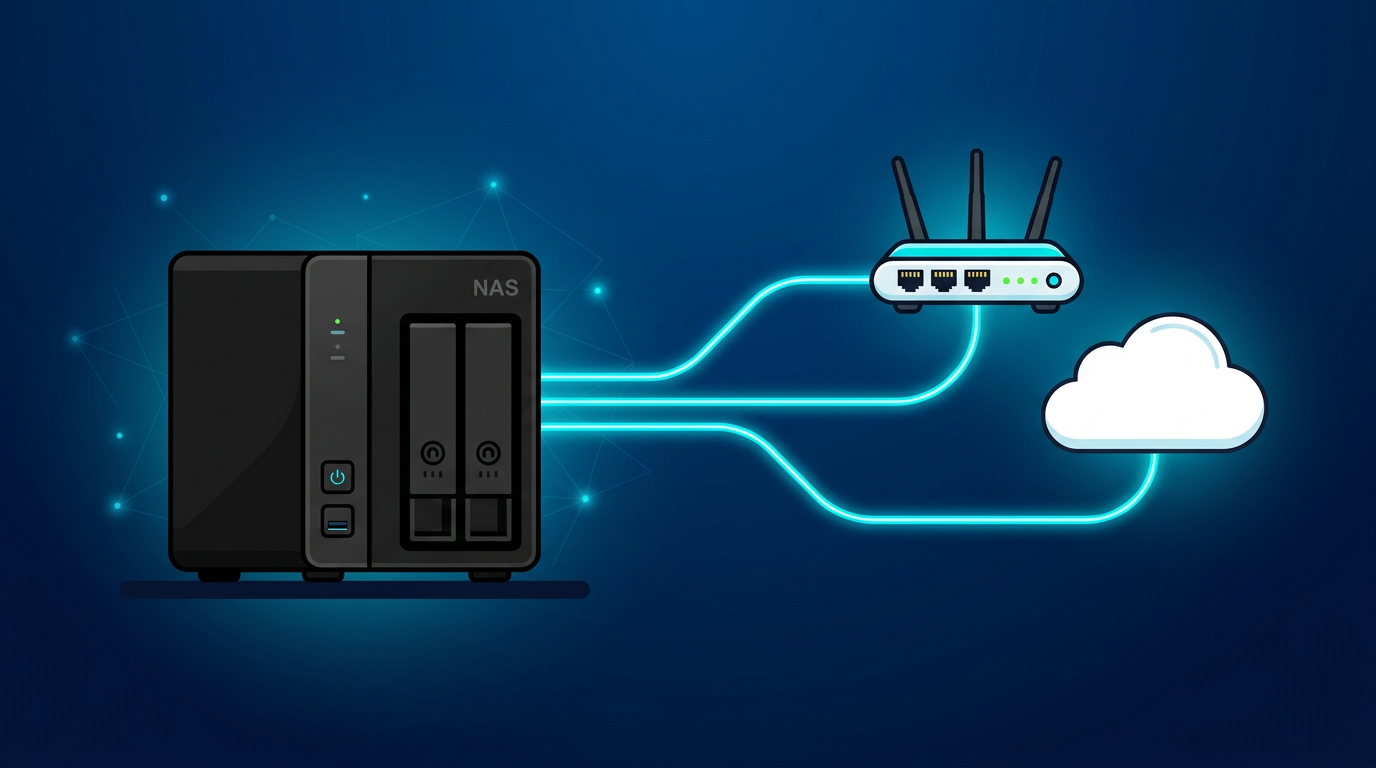
I have been adding MCP (Model Context Protocol) to the systems I already operate at home: storage, networking, and this WordPress site. The useful part is not giving an AI unrestricted shell access. It is exposing a small set of typed tools, then deciding which tools are read-only and which require approval.
This is the pattern I use: connect the services, verify the connections, start with inventory and health checks, and keep mutations behind an explicit confirmation step.
1. Inventory the MCP servers
From the host running Hermes, I first check which servers are configured and enabled:
hermes mcp lsI then test each important connection individually. The test verifies that the transport starts and that the server exposes its tools; it does not grant permission to change anything.
hermes mcp test truenas
hermes mcp test unifi-network
hermes mcp test wongtek
In my current setup, the WordPress server exposes the site-management tools, the TrueNAS server exposes storage and dataset tools, and the UniFi server exposes network, client, device, and statistics tools. The exact server names are local configuration details, so I use the names shown by hermes mcp ls rather than copying them from an example.
2. Start with read-only inventory
The first agent profile should be able to inspect state without being able to modify it. For example, my initial checks are:
# TrueNAS MCP tools
list_pools()
list_datasets()
list_snapshot_tasks()

# UniFi MCP tools
unifi_list_devices(summary=true, limit=20)
unifi_list_clients(filter_type="all", include_offline=false, limit=20)

# WordPress MCP tools
wp_get_site_settings()
wp_list_categories(hide_empty=true)
wp_list_tags(search="WordPress")
These checks give the agent enough context to answer useful questions without handing it an unrestricted database or shell connection. My latest inventory returned three healthy TrueNAS pools, six online UniFi devices, and 87 current UniFi clients. Those numbers are operational facts from the live systems, not values copied from documentation, and they will change over time.
3. Use least-privilege agent profiles
I keep read-only monitoring separate from administrative automation. A health-check profile needs tools such as:
- TrueNAS pool, dataset, and snapshot-task reads
- UniFi device, client, event, and statistics reads
- WordPress post, page, category, tag, and site-setting reads
It does not need to create datasets, delete snapshots, change firewall rules, block clients, edit published posts, or publish content.
A maintenance profile can contain mutation tools, but I still want the agent to preview the intended change before applying it. For example, a network change should identify the target, the old value, the new value, and the expected impact. A storage operation should identify the dataset and include a rollback or snapshot plan.
The important boundary is not whether the agent is trusted in general. The boundary is whether each individual tool call is appropriate for the job.
4. Turn the checks into a health report
A useful cron job is a closed loop: gather state, compare it with thresholds, and report only actionable changes. The read-only portion can run on a schedule with the same MCP calls used interactively.
#!/usr/bin/env bash
set -euo pipefail

hermes mcp test truenas
hermes mcp test unifi-network
hermes mcp test wongtek
printf '%s\\n' "MCP connectivity checks completed"
The connectivity test is only the first layer. A connected MCP server can still return an application error or stale data, so the agent should also call the service-specific read tools and validate the response. For TrueNAS, that means checking pool health and snapshot coverage. For UniFi, it means checking device status and recent client or event data. For WordPress, it means checking that the site and required content endpoints respond correctly.
5. Keep WordPress changes as drafts
For content automation, I separate writing from publishing. The agent can research a topic, create a post with status=draft, and return the post ID for review. Publishing remains a deliberate human action.
wp_create_post(
    title="Example title",
    content="<p>Draft content</p>",
    status="draft",
    categories=[4, 9, 12],
    tags=[110]
)
I also keep the content tool separate from site-structure tools. A writing agent should not need permission to change themes, users, DNS, or unrelated settings. After creating a draft, I re-read the post and check its links and HTML before asking for approval.
6. Treat secrets and identifiers as production data
MCP configuration contains credentials, controller addresses, site URLs, and sometimes device identifiers. None of those belong in a public post or in a general-purpose prompt. I keep secrets in the service configuration or credential store, never in the article body or shell history.
Before saving a draft, I scan the rendered HTML for:
- Passwords, API keys, tokens, and application passwords
- Private IP addresses and internal hostnames
- Hardware serial numbers and controller identifiers
- Home Assistant entity IDs that contain device-specific identifiers
Examples in public documentation should use placeholders such as <controller-host>, <site-url>, and <device-id>. A working command is still useful when the operator knows which local value belongs in each placeholder.
7. The operating model
The model that works for me is simple:
- Expose narrow, typed MCP tools instead of unrestricted access.
- Give monitoring profiles read-only tools.
- Require previews and confirmation for changes.
- Keep credentials and internal identifiers out of prompts and published content.
- Verify the external state after every approved write.
MCP does not remove the need for normal operations discipline. It makes that discipline easier to encode: the tool list becomes the permission boundary, the agent can use the same checks every time, and the approval point is visible before a change reaches production.